When shot correctly, a simple smartphone panorama can be transformed instantly into an interactive, 3D digital experience.
Here is your complete blueprint for shooting professional-grade mobile panoramas and using ZVR360.com to convert them into high-converting virtual tours.
Part 1: Capturing the Perfect Foundation (The Mobile Steps)
Before a platform can render an immersive 3D environment, it needs flawless visual data. Stitching errors, sudden exposure jumps, or jagged horizons will break the illusion of a virtual tour.
Follow these four steps to capture an asset optimized for 3D conversion:
- Step 1: Lock Your Exposure (AE/AF Lock)
- The Action: Tap and hold your phone's screen on a mid-tone area of the room until the "AE/AF Lock" indicator appears.
- Why it matters: If you scan past a bright window without locking exposure, your camera will suddenly darken the frame, creating jarring, unfixable vertical dark stripes in your final scene.
- Step 2: Establish Your Core Stance
- The Action: Hold your phone vertically, tuck your elbows tight into your ribs, and plant your feet firmly.
- Why it matters: Do not walk sideways. Your body must act as a rigid tripod. Walking horizontally introduces "parallax errors" which warp straight walls and door frames.
- Step 3: Pivot Smoothly from the Waist
- The Action: Rotate your upper body gradually from left to right, turning from your hips. Keep the phone rotating over its own axis as closely as possible.
- Step 4: Keep the Arrow Steady on the Line
- The Action: Slow down and watch the guide line on your screen. Ensure the central tracking arrow stays locked on the horizon path to prevent a wavy, distorted image.
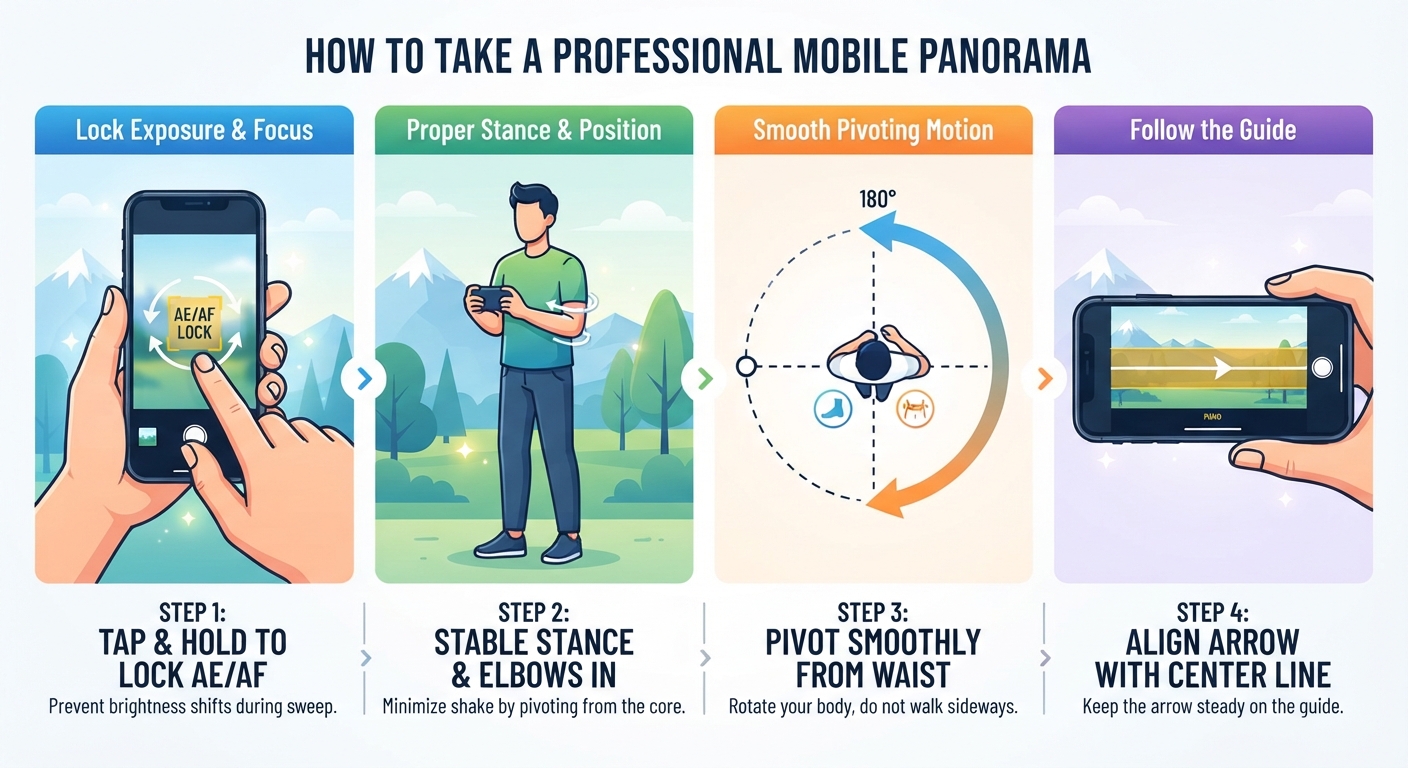
- The Action: Slow down and watch the guide line on your screen. Ensure the central tracking arrow stays locked on the horizon path to prevent a wavy, distorted image.
Part 2: Elevating Flat Media into 3D Reality with ZVR360.com
Once you click stop, you have a beautiful, high-resolution horizontal strip saved to your camera roll. While it looks impressive on a phone screen, viewing it normally requires scrolling endlessly from side to side.
This is where cloud rendering bridges the gap between basic photography and professional interactive media.
The Magic of Web-Based Panoramic Conversion
By importing your phone’s panorama into web platforms like ZVR360, cloud-stitching software automatically wraps your flat image around a digital cylinder or sphere.
Instead of a flat strip, your viewers are placed inside the center of the frame. They can click, drag, zoom, and look around your space smoothly—exactly like standard real estate digital walkthroughs, but without the thousand-dollar specialized camera equipment.
Step-by-Step: Creating Your Virtual Tour
- Export at Highest Quality: Transfer your mobile panorama to your computer or use your phone browser. Ensure you do not compress the image during transfer.
- Upload Your Scene: Drop your panoramic image directly into your digital tour creator dashboard.
- Set the Initial View Location: Choose the exact orientation angle you want your clients or visitors to see the moment the tour loads.
- Link Multiple Rooms (Hotspots): If you captured multiple mobile panoramas (e.g., the kitchen, living room, and patio), link them together, allowing users to "walk" from room to room interactively.
- Publish and Embed: Generate a clean web link or an iframe embed code to place your newly minted virtual tour directly onto your website, property listing page, or social profiles.
Why This Workflow is a Game Changer for Budget Creators?
Investing in dedicated 360-degree cameras or hiring professional scanning services can cost hundreds of dollars per project. By combining the hidden power of your mobile phone’s built-in camera mechanics with cloud processing, you unlock an enterprise-level marketing tool at effectively zero cost.
Clean camera mechanics build great panoramas. Great panoramas build stunning virtual tours. Grab your smartphone, lock your exposure, and start transforming your physical spaces into digital experiences today.
Ready to Transform Your Photos into Immersive Experiences?
Don't let your panoramic photos sit flat in your camera roll. Turn your smartphone images into fully interactive, client-ready 3D spaces in less than five minutes.